Events calendar homepage

The Yale-Localist calendar homepage keeps users updated on events that are both upcoming and those that are trending within the system. The feed in each “Upcoming” and “Trending” view is organized chronologically with the current date’s events appearing first.
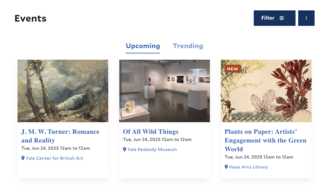
screenshot of homepage of localist

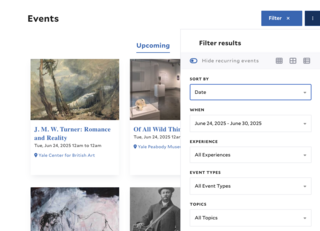
Users can filter these views by clicking on the “Filter” button at the top right, providing many ways to filter events depending on the user’s search criteria. They can hide recurring events; sort by date, name, and popularity; and choose the event experience, type, topic covered, and target audience. After inputting their filters, clicking “Apply filters” at the bottom of the menu box will then repopulate the view while adhering to their search criteria.

screenshot of filters in localist
screenshot of filter results on localist

User dashboard 

Within the personal dashboard, users have the option to explore and register for events they’re interested in, keep track of events they have submitted in review, and follow event schedules for people, groups, and places across Yale’s campus.  

screenshot of user dashboard in localist

There are many ways — all optional — to build and use your events dashboard: 

Set up your profile 

There are two ways to set up your Yale-Localist account profile:

  1. After logging in to your dashboard, in the main menu, under “Profile Completeness,” click “Complete your profile” and follow the steps. 
screenshot of user profile in localist
  1. Or, from the top right corner of your screen, click the dropdown menu and then click “Settings.” Follow the steps. 
screenshot of user profile link in localist

Create an events email digest 

In the main menu, click the “Build an Email Digest” button within the “Special Delivery” section. Fill out the fields according to your interests—including what you do and don’t want to see in your digest—and click “Save Changes” when finished. 

screenshot of email digest link in localist
screenshot of email digest builder in localist

Places and groups to follow 

If there are specific places or groups across campus you would like to follow, within the main dashboard menu, click “Following” in the top ribbon. 

screenshot of user dashboard tabs in localist

Depending on which areas you’re interested in, for the “Places” option, type the place you would like to follow in the free text field; in the “Groups” option, click “browse for groups” to populate a complete list of campus groups to follow. Click the tile of those you are interested in to follow in your dashboard. 

screenshot of followed groups on localist

Once you follow these places and groups, any associated events will appear in your personalized feed.